3.4.2 Start your media plan
Course subject(s)
3. Plan your course design
Goal
In this activity, you will create the first part of your media plan for your online course. This plan will help you to get an overview of the media you need to create or find.
Description
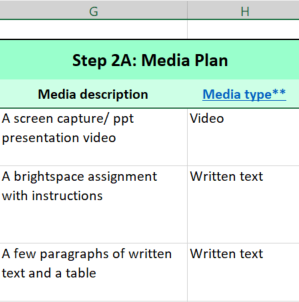
Media is an important resource for learning. You can use video, images, text, textbooks and so on. You probably already have some materials you can use. But maybe you also need to create or find some new materials. This activity will help you to get an overview of all the media in your course. You will work in Step 2 of the course design template:
Task
- Open your course design template from the storyboarding activity.
- Identify which learning activities in Column B include the use of media
- Fill in the following columns:
- G: a detailed description of the media that you will need for this learning element
- H: select the corresponding media type from the drop-down menu. If you need help choosing, refer to the explanation in the box to the right of the table in the template
Note: Columns I and J will be used later in this course, when you start creating media and editing your course in Brightspace. You can leave them empty for now.

Blending your Education by TU Delft OpenCourseWare is licensed under a Creative Commons Attribution-ShareAlike 4.0 International License.
Based on a work at https://digitelpro.eadtu.eu/course-programmes/blended-education/